How to use IX Leave Attendance
This guide explains how employees use Leave and Back, how the Windows application connects, and how admins monitor team attendance.
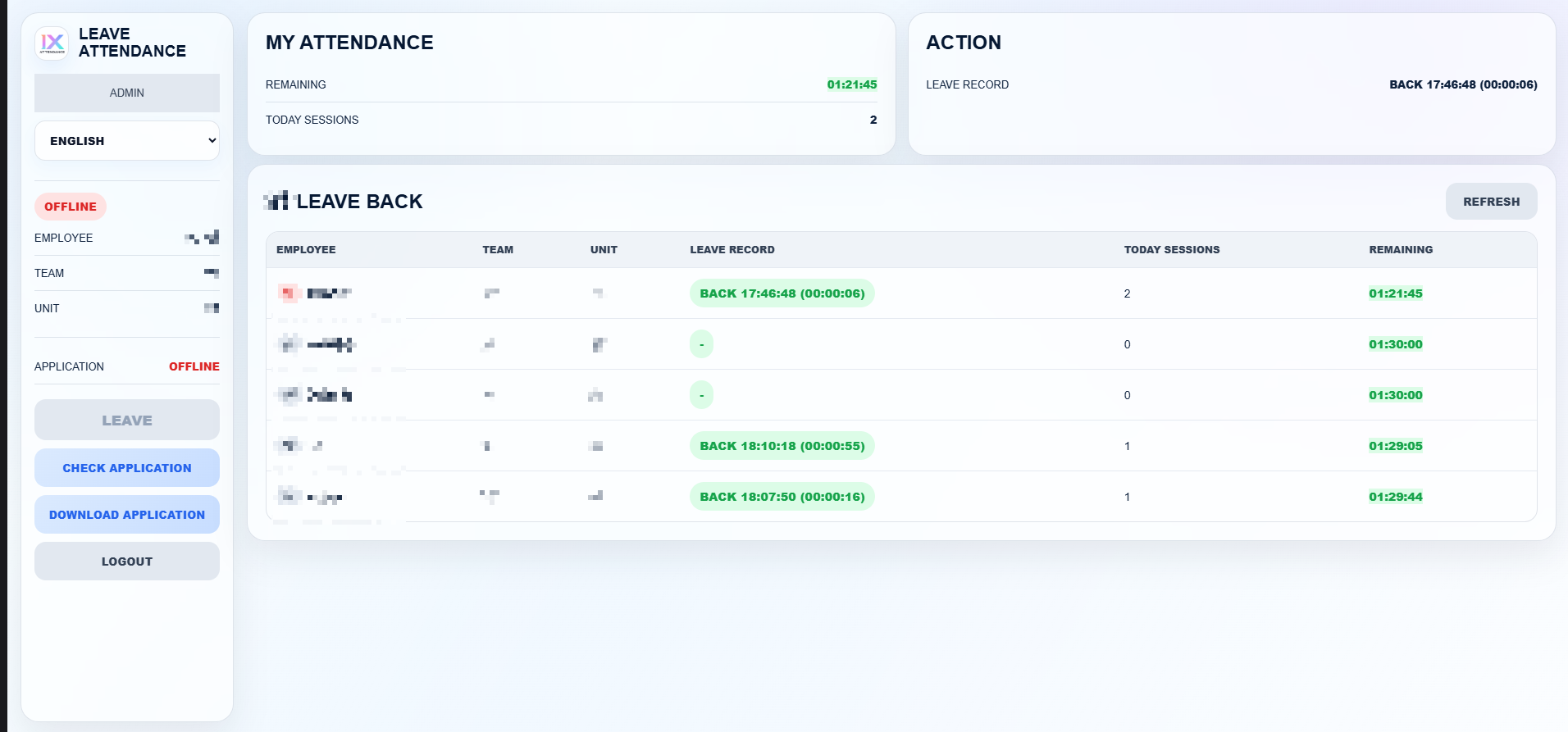
Prepare these two things first
The portal needs the Windows application to be open on the same device. Without the application, Leave and Back should not be used.
Run IX Leave Back Support. It should show your account name and Connected status.
Login to the Leave Attendance web panel using your approved email and PIN.
Click Check Application if the portal does not detect the application automatically.
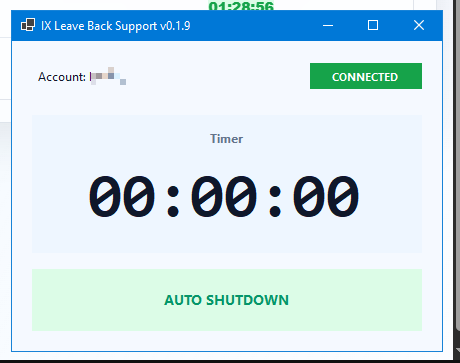
What employees should check
How to press Leave
Leave should only be pressed when the application is online. The system starts Windows auto-shutdown and records the Leave event.
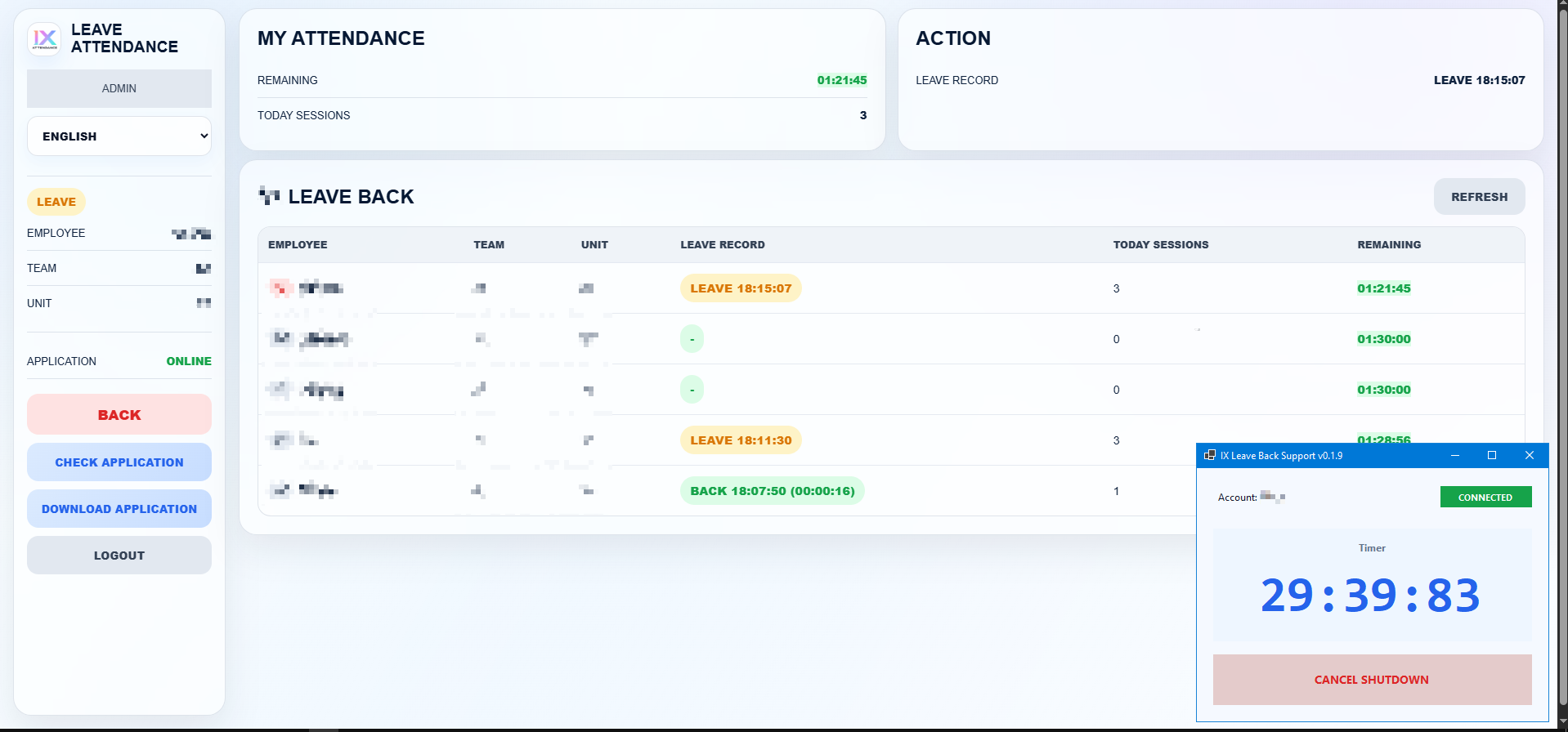
Application must show Online in the web panel.
The green Leave button starts the process.
The Windows application starts the shutdown timer.
Status changes to Leave and today sessions increase.
The correct team channel receives a Leave notification.
How to press Back
Back cancels the shutdown timer, calculates the leave duration, updates remaining time, and sends the team notification.
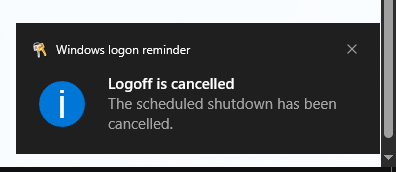
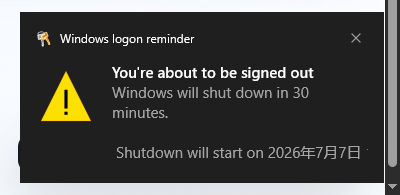
Open the portal before the shutdown timer finishes.
The red Back button appears while the user is on Leave.
The Windows application cancels the active shutdown timer.
The system calculates how long the Leave session took.
The employee status changes back to Working.
Employees can see their own team
Each employee can view colleagues in the same team. This is for availability awareness, not penalty display.
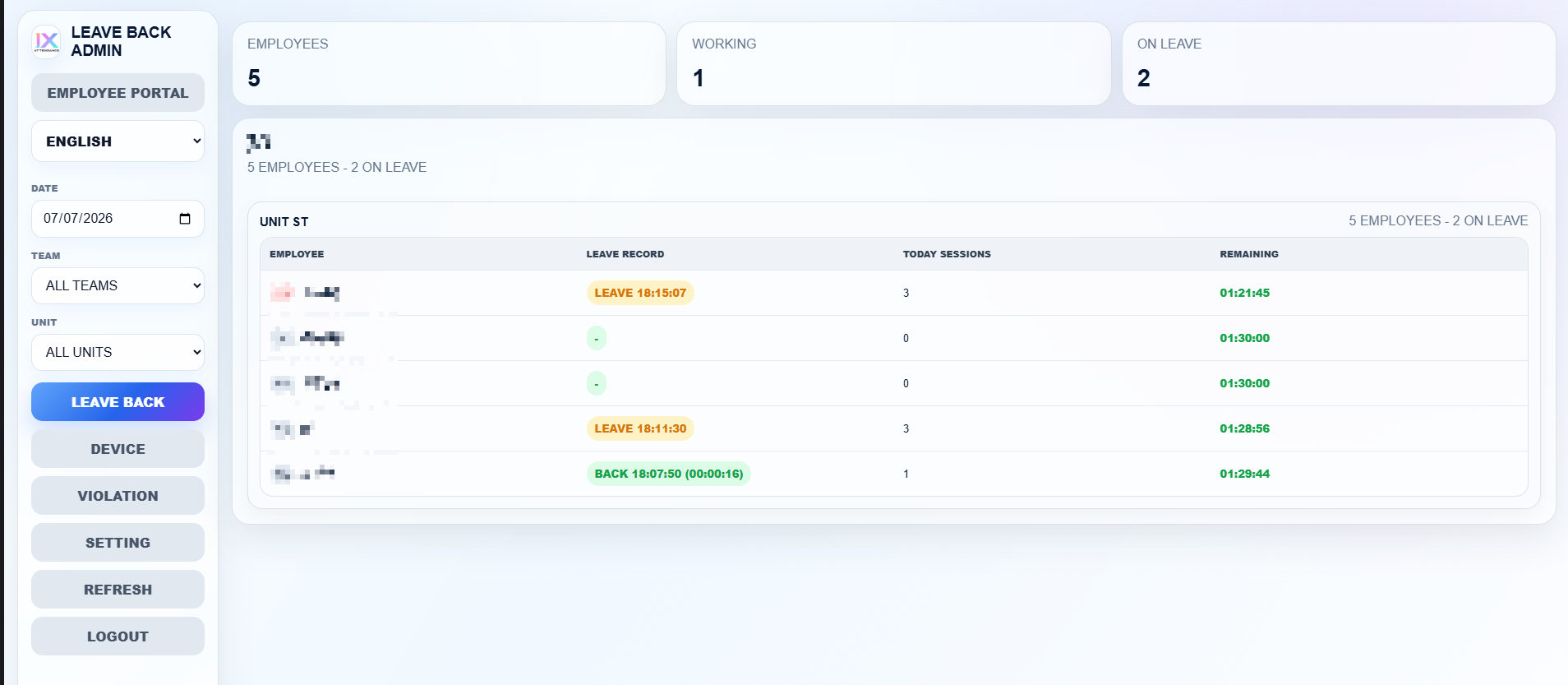
How admins monitor Leave and Back
Choose the work date to review current or past records.
Use team and unit filters to focus on one group.
Check who is working, who is on Leave, today sessions, and remaining time.
What each admin tab is used for
Daily monitoring
Shows teams, units, live Leave/Back records, today sessions, and remaining time.
Application check
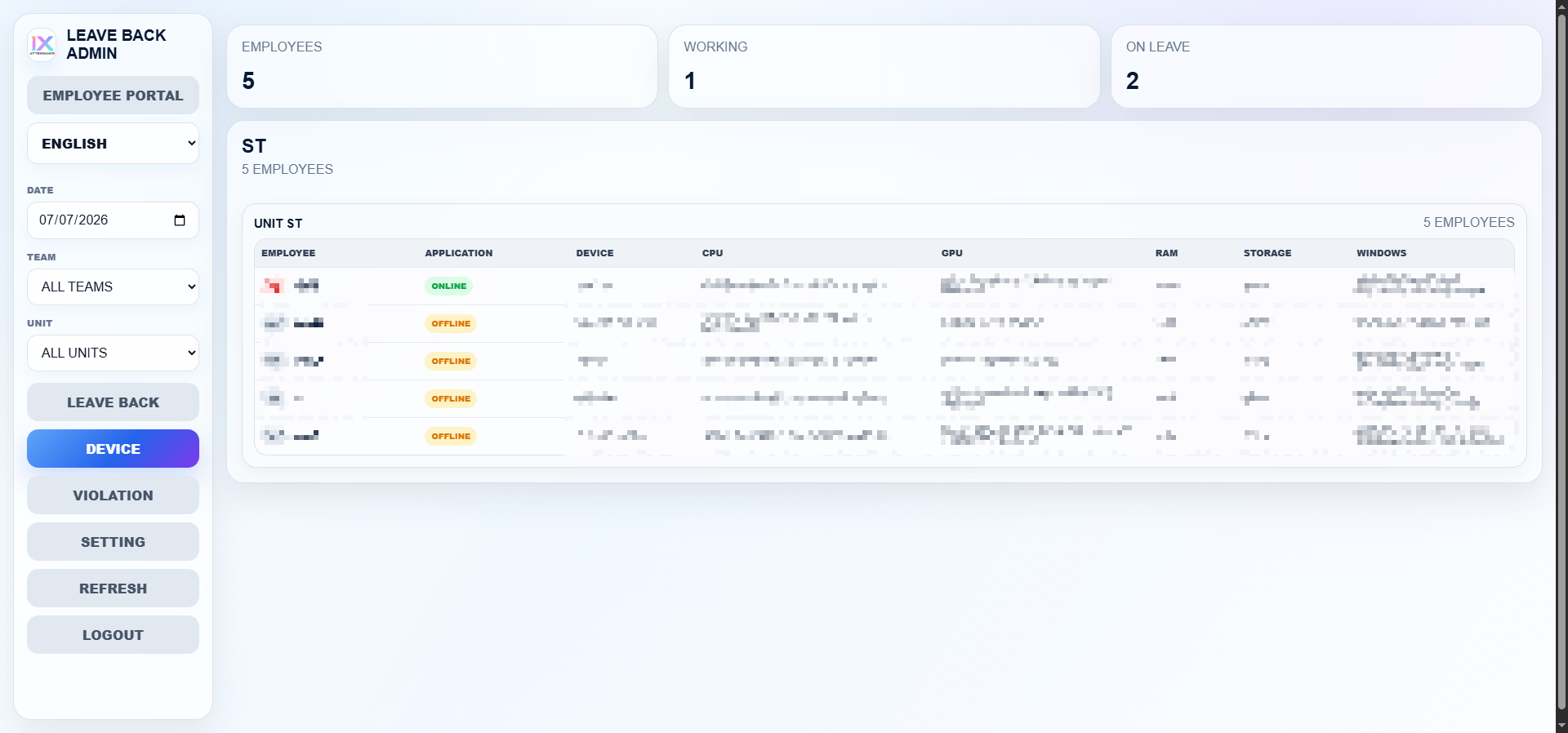
Shows whether the user application is online and what device is being used.
Admin review
Shows session and daily-limit issues for admin review only.
Policy control
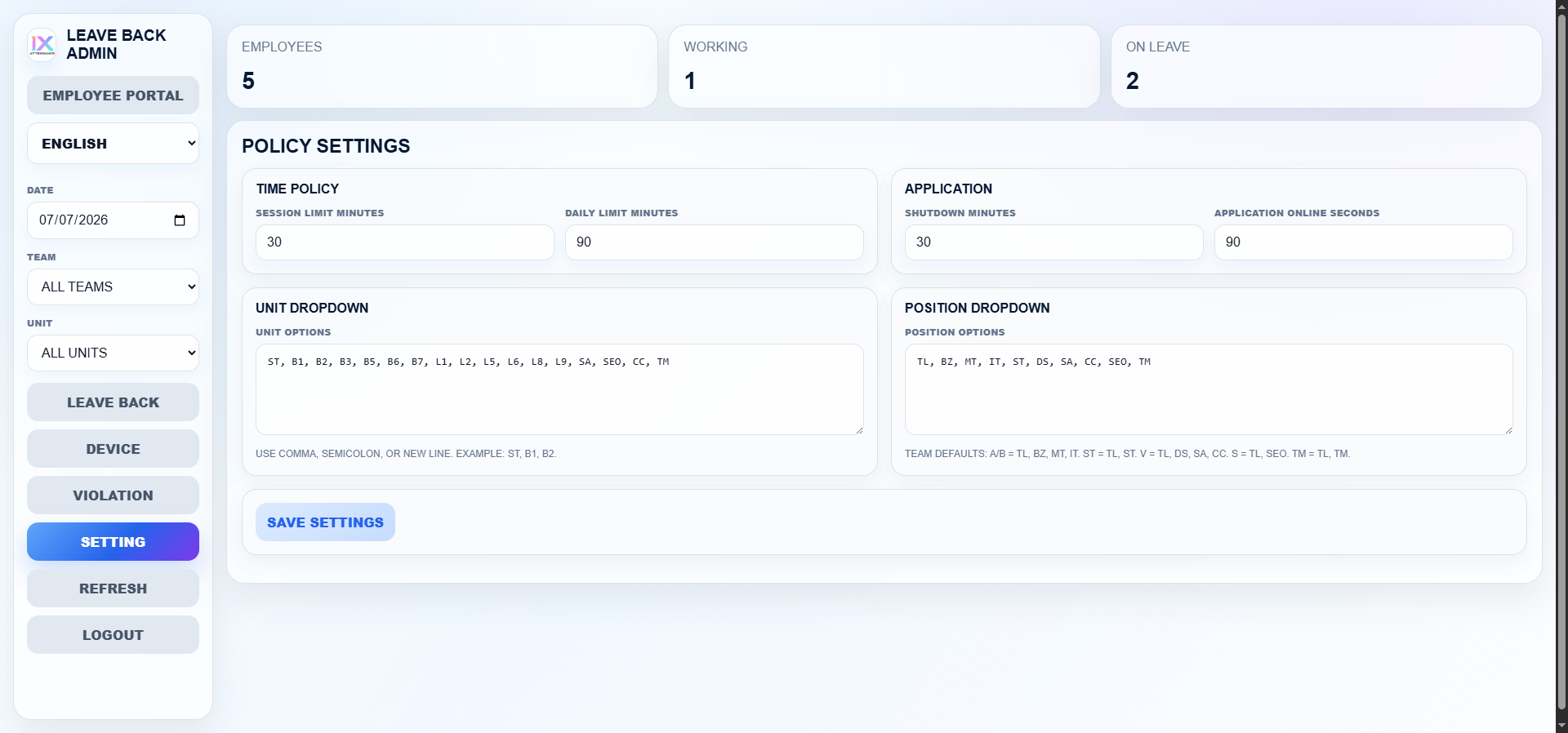
Adjust leave limit, shutdown time, application online seconds, unit dropdown, and position dropdown.
Manual reload
Use Refresh after changing filters or when confirming a newly recorded action.
Return to user view
Opens the employee-facing Leave and Back page.
What the local application does
The web panel cannot control Windows by itself. The application handles shutdown and cancel shutdown on the local PC.