Training Guide

How to use IX Leave Attendance

This guide explains how employees use Leave and Back, how the Windows application connects, and how admins monitor team attendance.
EmployeeLeave and Back
ApplicationShutdown control
AdminTeam monitoring
English Indonesia Thai Viet 繁體中文
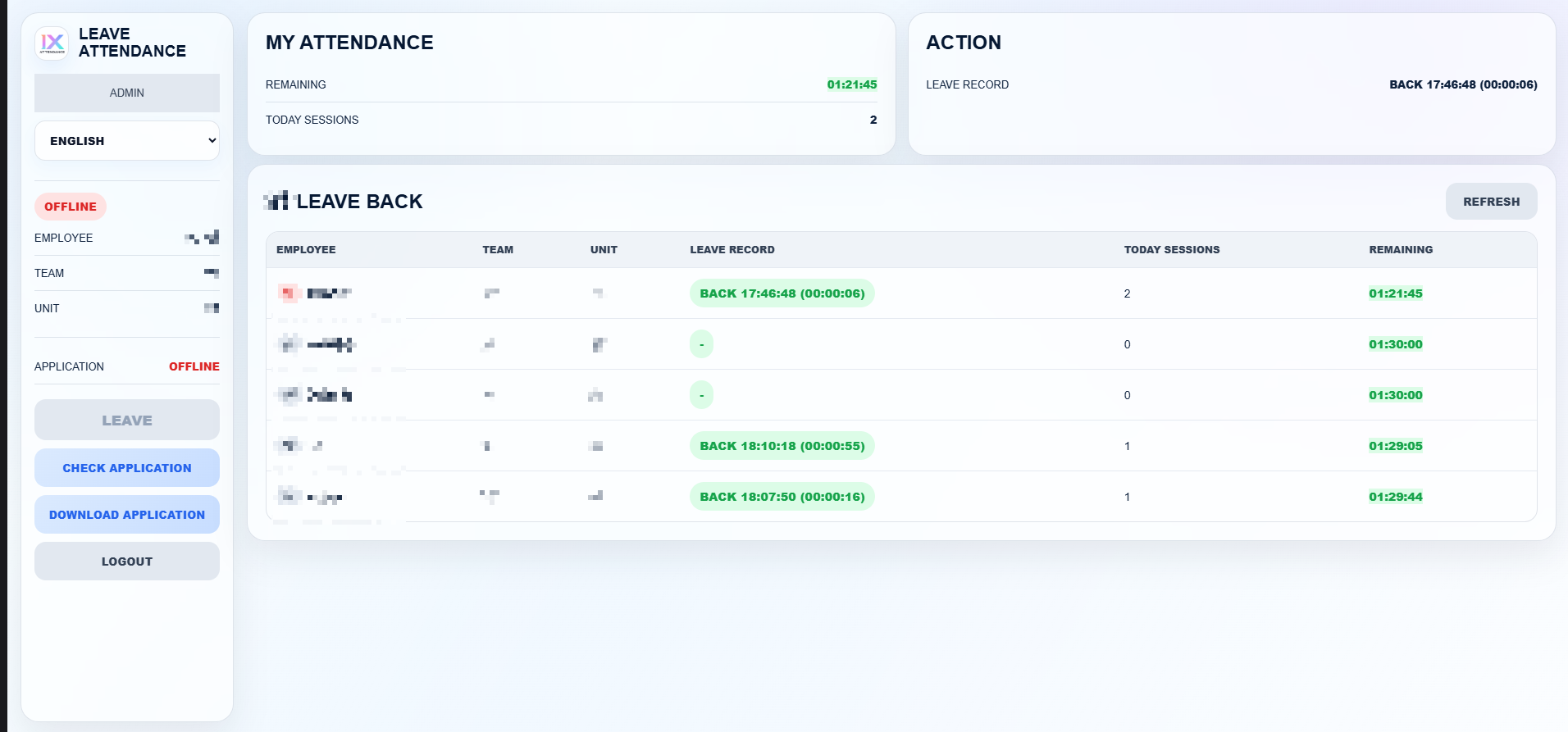
IX Leave Attendance employee portal with blurred sample data
Employee portal overview with private details blurred
Before Work Starts

Prepare these two things first

The portal needs the Windows application to be open on the same device. Without the application, Leave and Back should not be used.

Open the Windows application1

Run IX Leave Back Support. It should show your account name and Connected status.

Open the web portal2

Login to the Leave Attendance web panel using your approved email and PIN.

Check Application3

Click Check Application if the portal does not detect the application automatically.
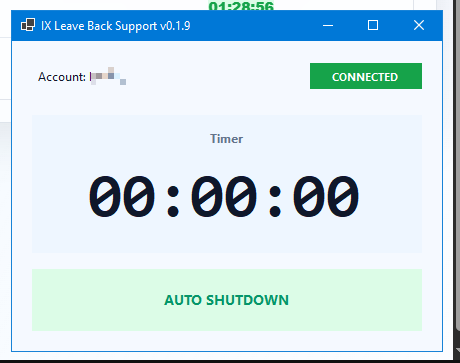
IX Leave Back Support application connected
Run the application until it shows Connected
Login and Registration

First-time users complete missing details

Admin only needs to add the email first. If the system does not have the user details, the registration form appears automatically.

Step 1

Enter email and PIN

Use the approved email address. If this is the first time, the PIN becomes the user login PIN.

Step 2

Complete profile

Fill employee name, team, unit, position, and Discord user ID if required.

Step 3

Save registration

After saving, the system opens the employee portal and the user can use Leave and Back.

Language

Choose display language from the portal

The system supports English, Indonesia, Thai, Viet, and Traditional Chinese. The language selector changes the text shown in the portal.

Employee portal working view with details blurred
Employee view: status, remaining time, and team table
Employee Portal

What employees should check

StatusWorking / Leave / Offline
ApplicationOnline
RemainingDaily leave time left
Today SessionsTotal Leave sessions today
Team TableSame team Leave and Back status
Employee Action

How to press Leave

Leave should only be pressed when the application is online. The system starts Windows auto-shutdown and records the Leave event.
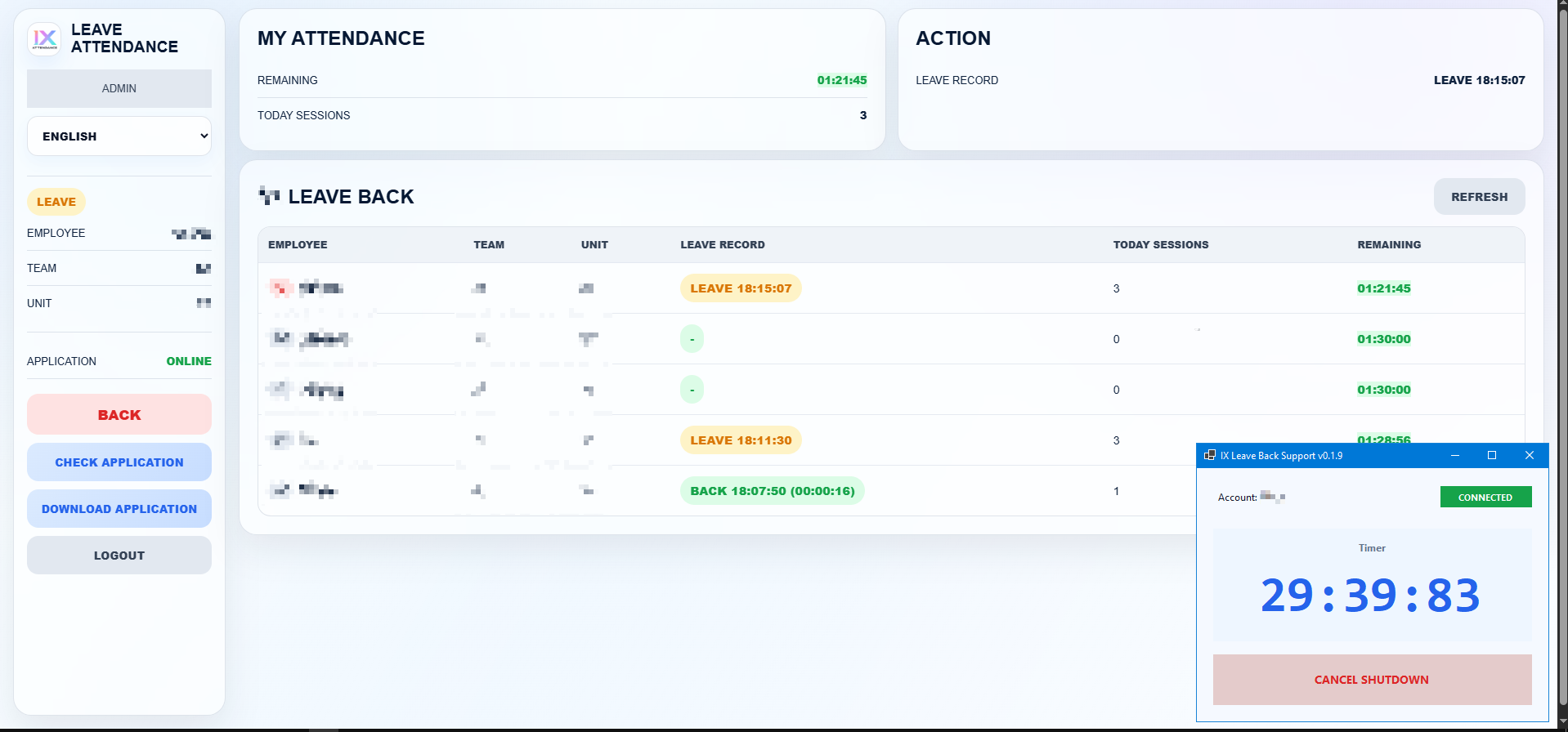
Employee portal on leave with details blurred and application countdown
Leave state: Back button appears and the application timer starts
1Confirm app online

Application must show Online in the web panel.

2Click Leave

The green Leave button starts the process.

3Auto-shutdown starts

The Windows application starts the shutdown timer.

4Record updates

Status changes to Leave and today sessions increase.

5Discord updates

The correct team channel receives a Leave notification.

Employee Action

How to press Back

Back cancels the shutdown timer, calculates the leave duration, updates remaining time, and sends the team notification.
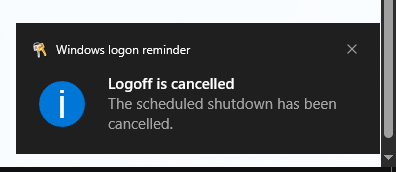
Windows shutdown cancelled message
Windows confirms the shutdown was cancelled
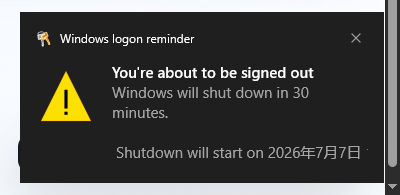
Windows shutdown reminder
If Back is not pressed, Windows shows shutdown reminder
1Return to work

Open the portal before the shutdown timer finishes.

2Click Back

The red Back button appears while the user is on Leave.

3Shutdown cancels

The Windows application cancels the active shutdown timer.

4Duration records

The system calculates how long the Leave session took.

5Status returns

The employee status changes back to Working.

Team View

Employees can see their own team

Each employee can view colleagues in the same team. This is for availability awareness, not penalty display.
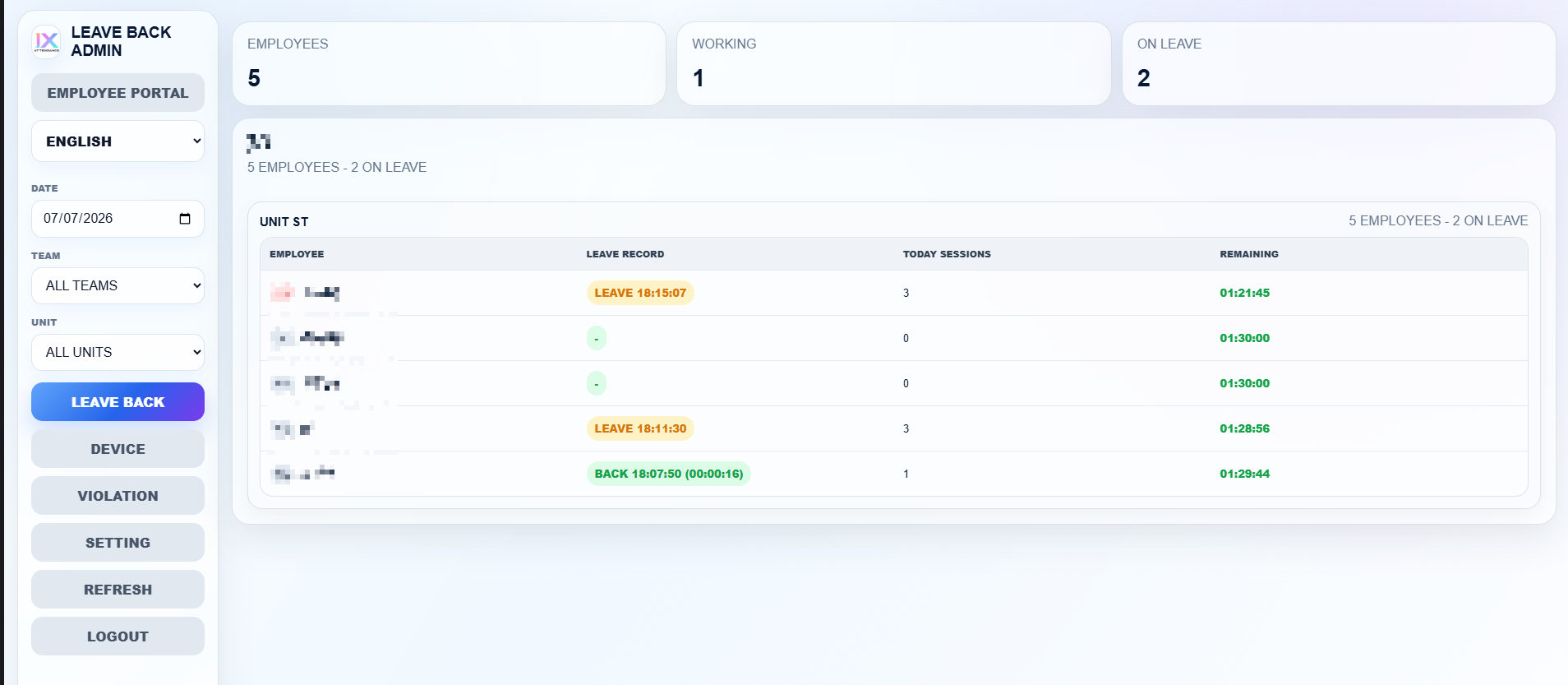
EmployeeName in same team
Leave RecordLatest Leave or Back status
Today SessionsNumber of Leave sessions today
RemainingRemaining daily leave time
Team leave back table with details blurred
Team table shows availability without exposing penalties
Admin leave back page with details blurred
Admin Leave Back page separated by team and unit
Admin Usage

How admins monitor Leave and Back

Select date1

Choose the work date to review current or past records.

Filter team and unit2

Use team and unit filters to focus on one group.

Review records3

Check who is working, who is on Leave, today sessions, and remaining time.

Admin Tabs

What each admin tab is used for

Leave Back

Daily monitoring

Shows teams, units, live Leave/Back records, today sessions, and remaining time.

Device

Application check

Shows whether the user application is online and what device is being used.

Violation

Admin review

Shows session and daily-limit issues for admin review only.

Setting

Policy control

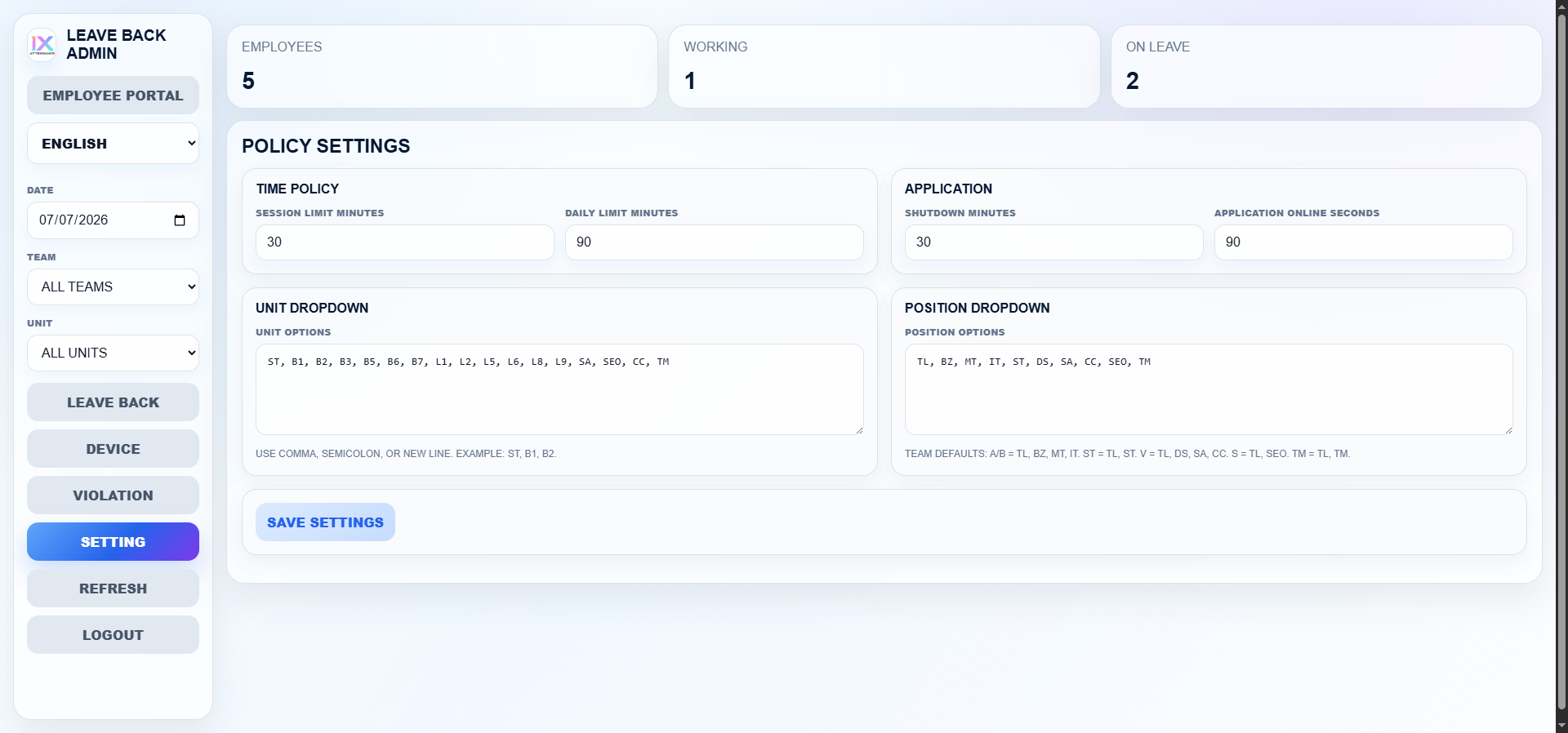
Adjust leave limit, shutdown time, application online seconds, unit dropdown, and position dropdown.

Refresh

Manual reload

Use Refresh after changing filters or when confirming a newly recorded action.

Employee Portal

Return to user view

Opens the employee-facing Leave and Back page.
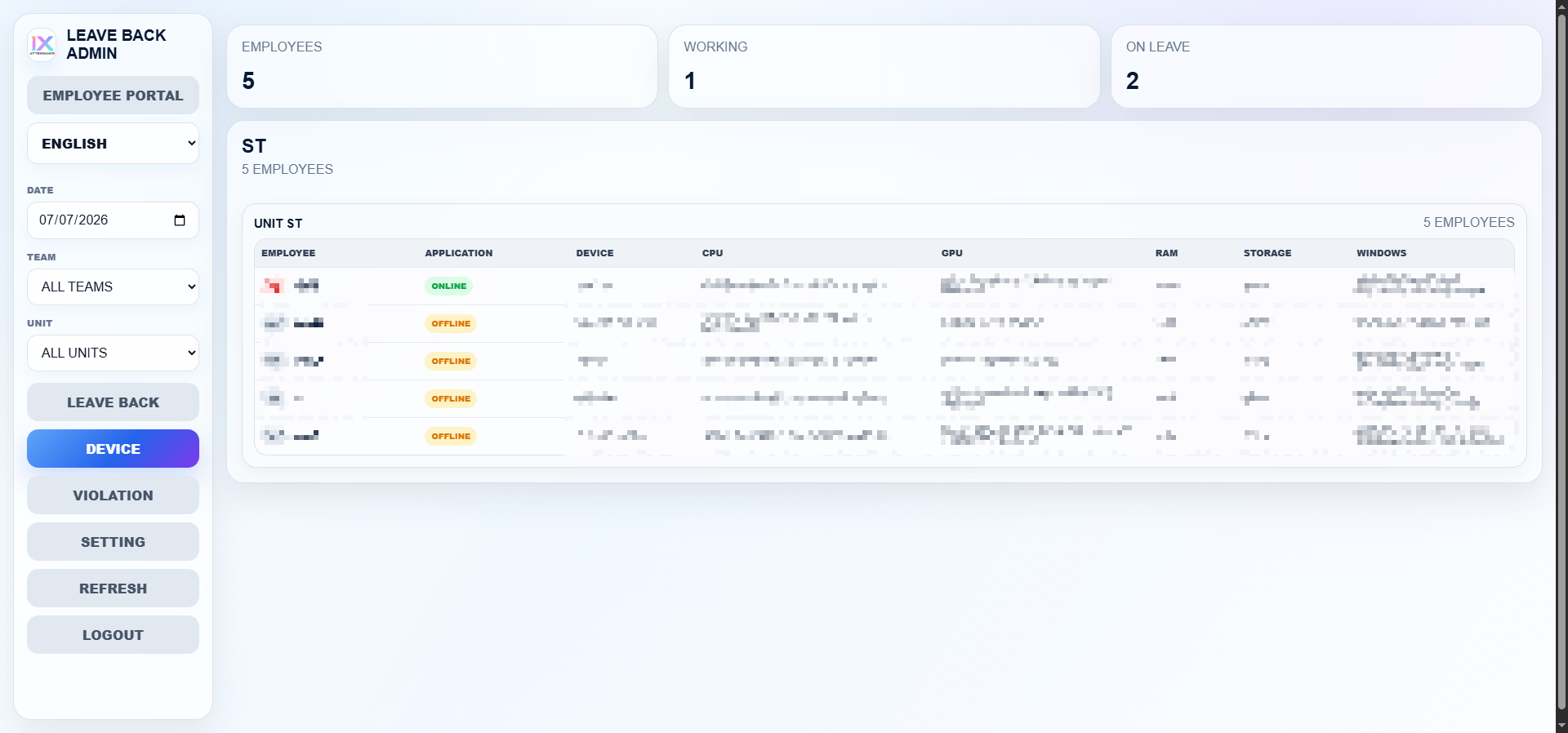
Admin device page with details blurred
Device tab: application status and device details for admin only
Admin settings page
Setting tab: policy, dropdowns, and application timing
Windows Application

What the local application does

The web panel cannot control Windows by itself. The application handles shutdown and cancel shutdown on the local PC.

ConnectedReady
DisconnectedCannot use Leave
Auto ShutdownTimer active
Cancel ShutdownBack / Manual cancel
IX Leave Back Support application
Application shows account, connection status, timer, and shutdown button
Common Questions

What users should do when something looks wrong

Application Offline

Open the application

Run IX Leave Back Support, then click Check Application in the web panel.

Cannot Leave

Check application first

Leave is blocked when the application is offline or paired to a different account.

Back not working

Confirm app is connected

Open the application and press Check Application, then press Back again.

Wrong name/team

Ask admin

Admin can correct the employee details from the database sheet or registration flow.

Discord ID

Use numeric ID

Discord ID must be copied from Developer Mode, not the Discord username.

Daily Reset

Reset is at 12:00 GMT+8

Today sessions and remaining time follow the company workday reset time.

Summary

Open the application, login to the portal, press Leave when leaving, and press Back when returning.

Employees get a simple action panel. Admins get the team view, device view, violation review, and settings.

LeaveStart record and shutdown
BackCancel shutdown and record return
AdminMonitor teams and settings